


2.3 Using the MLWorks compilation system
xval.sml, yval.sml, zval.sml and sumxy.sml reside in a common directory, from which MLWorks was started. For details of how to make MLWorks search other directories for require declarations, see Section 2.5.
Once you have expressed the file dependencies in your source files using require declarations, you can compile the project using the compilation manager. To bring up the compilation manager, choose Tools > Compilation Manager from any MLWorks window.
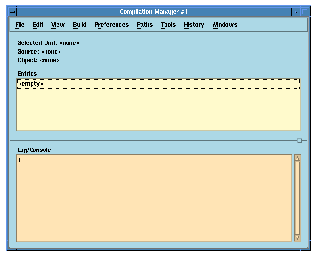
Figure 2.3 The MLWorks compilation manager.
The top pane of the compilation manager shows a list of the units currently known to it; each unit corresponds to a file of source code, and has the same name as the file without the .sml prefix.
Initially, the list is empty. To register sumxy on the list, choose File > Read Dependencies. MLWorks brings up a standard file dialog; select the file sumxy.sml, and click OK.
MLWorks adds sumxy to its list of units. It also reads the require statements in sumxy.sml and adds whatever further units are required by sumxy, and it checks those files for require declarations, and so on. In this example it has found four units.
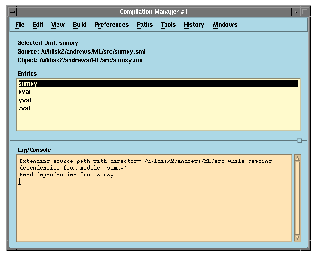
Figure 2.4 The sumxy unit and the units depends on.
Notice also that the action of reading dependencies is recorded on the compilation manager's History menu. All successful actions in the compilation manager are recorded on it and they can repeated by selecting them from the menu.
Choosing View > Show Graph produces a new window showing the current dependencies of the selected unit in graphical form.
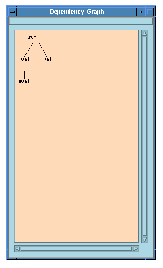
Figure 2.5 A dependency graph of sumxy and the units it depends on.
So far, MLWorks has not read the declarations in the files, and in particular it has not compiled them or loaded them into the environment. It has only read the require statements and calculated the dependencies.
Incidentally, you could remove a unit from the list by choosing Build > Delete, or clear the list with Build > Delete All. These operations only affect the list in the compilation manager; they do not delete any files or any objects from the filesystem. You could also edit the file corresponding to a unit by choosing Edit > Edit Selection; this puts you into your preferred editor, as detailed in Section 1.9, "Editing ML files".
Generated with Harlequin WebMaker