


4.3 Examining the interactive context: the browser tools
4.3.1 Inspecting values from the system browser
As we have already seen in Chapter 1, one use of this is to invoke an inspector on any value in the environment. To see more clearly the functions of the system browser, select Tools > System Browser from the menu bar.
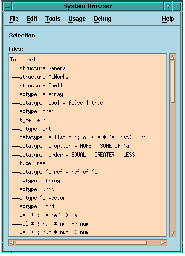
Figure 4.3 The MLWorks system browser.
The system browser shows all the built-in values that exist at top level in MLWorks: structures, types, values, and so on. A structure contains a list of further values with their types, and so on; you can use the system browser to look inside a structure. Click on the Shell structure to select it, and click again to expand it.
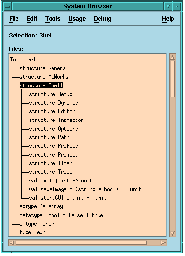
Figure 4.4 The system browser showing the contents of structure Shell.
The graph expands to show the types, exceptions and values specified in the Shell structure.
You can remove different kinds of ML entity from the system browser window using the Usage > Tool Settings > Browser Filters... dialog. The dialog contains options for showing and hiding structures, types, exceptions, variables, and so on.
If you select a value in the system browser, and use Edit > Copy and Edit > Paste to paste it into a different tool (for example, a listener), the full qualified name of the value is pasted.