


1 Using MLWorks interactively
For instance, you may know that there is a function called profile built in to MLWorks that invokes the MLWorks profiler, but you do not know where it resides in the large MLWorks and Shell structures.
The listener's Search dialog is useful here. To invoke the Search dialog, choose Edit > Find ... in the listener. The Search dialog appears.
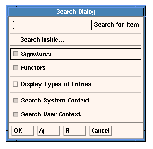
Figure 1.9 The listener's Search dialog.
You can enter the identifier you are interested in in the Search for Item text box. When you click Apply or OK, MLWorks searches the interactive environment and comes up with a list of matches. As well as returning exact matches, MLWorks will also return identifiers that start with what you entered. Note that trailing whitespace is counted as part of the search item.
MLWorks returns the results of the search in the Matches dialog. The following dialog was generated by a search for profile:
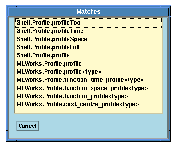
Figure 1.10 Results of a search for the identifier profile.
Notice how type and function identifiers are disambiguated, with type entries gaining a terminating "<type>".
If you click on one of the matched items, MLWorks will paste it into the listener from which you initiated the search.
You can tailor the search by adjusting the following settings:
MLWorks, Shell, General) and in the built-in identifiers available unqualified at top level (for example, the real function). The search area is equivalent to what is visible in the system browser.
You can get more information about a matching identifier by setting the Display Types of Entries option. This option makes entries in the Matches dialog appear with their full ML type information.
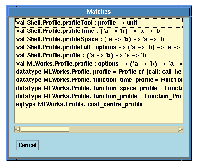
Figure 1.11 The profile search results with Display Types of Entries set.
Generated with Harlequin WebMaker