


1 Using MLWorks interactively
1.10 Searching for ML identifiers
Sometimes, you know the name of an identifier that you want to use, but you do not know where in a library to look for it. Other times you want to see if a library contains an item that will do what you want, but you can only guess at a name for the item. These situations are typical when working with large libraries that are organized into a hierarchy of many structures.
For instance, you may know that there is a function called use built in to MLWorks, but you do not know where it resides in the large MLWorks and Shell structures.
The listener's Search dialog is useful here. To invoke the Search dialog on the system browser, and choose Usage > Find from the menu bar. The Search dialog appears.
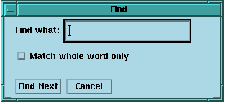
Figure 1.8 The listener's Search dialog.
You can enter the identifier you are interested in in the Find what text box. When you click Find Next, MLWorks searches the interactive environment and comes up with a list of matches. As well as returning exact matches, MLWorks will also return identifiers that start with what you entered. Note that trailing whitespace is counted as part of the search item.
MLWorks returns the results of the search in the tool being serched. The following dialog was generated by a search for use:
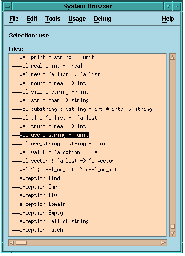
Figure 1.9 Results of a search for the identifier use.
Select Usage > Find in the listener. Note that this time the search dialog has some extra options.
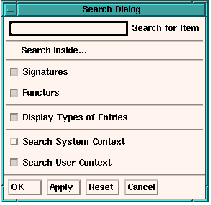
Figure 1.10 The listener search dialog.
You can tailor the search by checking relevant options in the search dialog. Checking Signatures ensures that signatures are searched, and checking Functors ensures functors and structures are searched.
You can get more information about a matching identifier by setting the Display Types of Entries option. This option makes entries in the Matches dialog appear with their full ML type information.
The final two checkboxes control the following aspects of your search:
- Search System Context
- Search for identifiers in the built-in structures (
MLWorks,Shell,General, and if the basis library is loaded,basis) and in the built-in identifiers available unqualified at top level (for example, therealfunction). The search area is equivalent to what is visible in the system browser. - Search User Context
- Search for identifiers created in the current interactive session. This includes those in any libraries you have loaded into the MLWorks interactive environment. The search area is equivalent to what is visible in the context browser.
If you know where your identifier is likely to be found, you can reduce the search time significantly by choosing only one of the Search User Context and Search System Context options.