


2.3 Basic use of the MLWorks project system
2.3.1 Creating a project file
Before we can set about compiling a set of ML code files, we need to set up a new project using the project workspace. Choose File > New Project from the menu bar. You are prompted for an initial working directory for the new project -- choose examples/projects for the purposes of this example -- and then the project workspace appears.
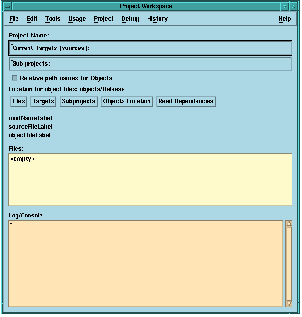
Figure 2.3 The MLWorks project workspace.
The project workspace consists of three main areas. The top third contains details of the various directories and files the project system refers to during the compilation process, and includes a set of buttons that call up dialogs for setting these directories and files. Note that the text areas listing the targets and subprojects are read only -- these values are actually set using project properties dialogs. The text areas can be selected and copied, however, and the scroll bar can be used to view the entire contents of the fields if they extend beyond the border of the project workspace window.
The middle third of the project workspace provides the details of individual object and source files, and includes a list of these files. Currently this list is empty, as we have not yet added any target source files.
The bottom third of the project workspace contains a log of the actions that have taken place in the project system so far.
Save the new (empty) project in the examples/projects directory by selecting File > Save Project from the menu bar to call up the Save As dialog, and navigate to the relevant directory. Specify the name myproject in the file name text area and click on OK. MLWorks automatically adds the .mlp suffix for you -- all valid MLWorks project files must have this suffix. From now on you can save any changes to your project file by selecting File > Save Project from the menu bar.