


2.3 Basic use of the MLWorks project system
2.3.2 Setting the project's required files
To begin with we need to specify the required files for the project. This tells the project manager where the target source files for the project are located. Click on Files. The "Project Properties - Files" dialog appears.
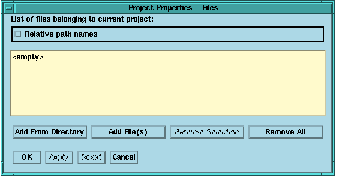
Figure 2.4 Project Properties - Files.
The source files for the example are in the examples/projects directory, so click on Add From Directory, and select this directory from the file selection dialog. This adds all the .sml files in this directory to the project as source files. Clicking on Add File(s) button allows you to add individual files as opposed to a whole directory.
If the Relative path names checkbox is unchecked, then the full path name for the examples directory is given in the dialog's path name list, and the target source files will be taken from this directory regardless of where the project file is saved. If the Relative path names checkbox is checked, then path names are set relative to the directory in which the project file is saved. The advantage of using relative path names is that you can move the project file to a different place where the directory structure is the same, and hence use the project to build the application using different source files, for example ones which print diagnostics. The advantage of using absolute path names is that you can move the project file anywhere, and it will still refer to the same source files.
In our example the project file is saved in the examples/projects directory, so checking the checkbox collapses the path name of the examplesprojects directory to a '.'. For our example it does not matter whether relative path names are used or not.
Now that the source path has been selected, click OK in the dialog. The project source path becomes visible in the project source path field of the project workspace.
Note that you can add as many path names to the project source path as you need. This allows you to compile interdependent source files located in as many different directories as you like.