


2.4 Further uses of the MLWorks project system
2.4.4 Subprojects
You can have one or more MLWorks projects as subprojects of a main project. This allows applications to be organized into manageable parts which depend on each other. Note that circular subprojects are not permitted -- for example, you cannot have two projects defined as subprojects of each other. Subprojects are transitive, which means that if you add a subproject to a project, you are also adding all of the subproject's subprojects too.
Subprojects are added to the main project by clicking on Set Subprojects in the project workspace. This calls up the "Project Properties - Subprojects" dialog. Added subprojects are shown in the Subprojects text field of the project workspace.
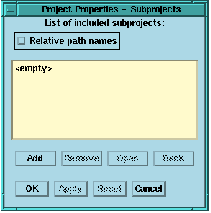
Figure 2.12 Project Properties - Subprojects
In our example, click on Add to call up a file selection dialog, and add the project fac.mlp, in the examples/projects/subproject directory. Once you have added this subproject to the main project, you can open it in the project workspace by clicking on Open. Note that the "Project Properties - Subprojects" dialog remains open, but now shows any of the subprojects of fac.mlp. Clicking on Back closes the subproject and returns you to the main project in the project workspace.
You should be aware of the following features of subprojects:
- A directory which is on the source path of a subproject does not need to be included in the source path of the main project, unless there are source files in the directory that are used by the main project but not by the subproject.
- Each subproject keeps the mode it was saved with, regardless of the mode of the main project. For example, if a subproject is saved with its mode set to Release, all of the subproject's object files will be placed in the Release directory on compilation of the main project, even if the main project has its mode set to Debug.
- In the project workspace only those files that are used by the main project are displayed. None of the subproject files are displayed. This allows you to concentrate on the dependencies within the main project (although on compilation the project system checks the files in all the subprojects too, and brings them up to date if this is necessary).
With fac.sml added to myproject.mlp as a subproject, the target source files of the main project (such as sumxy.sml and xval.sml) can refer to the fac function defined in the target source files of the subproject.
A note of warning concerning the use of different configurations with subprojects: setting the main project to have a specific configuration affects the subprojects in one of two ways:
- If the subproject does not have a configuration with the same name defined, then the subproject is compiled with no configuration information.
- If the subproject has a configuration with the same name as the configuration of the main project, it is compiled with that configuration set as the current one. Note that the subproject uses its own configuration source and library path information, and not the configuration information of the main project.