


2.4 Further uses of the MLWorks project system
2.4.3 Configurations
Using configurations allows you to use the same MLWorks project to build the same application for a different platforms. This is done by proving a simple mechanism for switching between extensions to the source and library paths. The location of the compiled objects is also changed.
Choose Project > Properties > Configurations to call up the "Project Properties - Configurations" dialog.
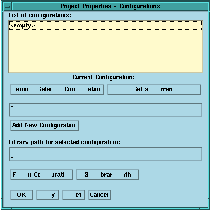
Figure 2.11 Project Properties - Configurations
At the top of the configurations dialog the list of available configurations is displayed. The current configuration is shown beneath this list.
You can add a new configuration by typing in a name for it in the text field above the Add New Configuration button, and then clicking on the button. The new configuration name appears in the list of configurations.
The library path for a given configuration can be set or changed as follows:
- 1. Select the configuration by clicking on it in the list of configurations
- 2. Click on Set Library Path to set the library path. The configuration path dialog appears.
- 3. You can add a new directory to the configuration library path by clicking on Add to List and choosing it from the file selection dialog that appears.
- 4. Once you have added all the required directory to the path dialog click on OK. The new path is displayed in the relevant text area in the "Project Properties - Configurations" dialog.
You can add extra source files to be used by the project when it is in the current configuration by clicking on Files in Configuration in the configuration dialog, and adding extra files using the standard project file dialog that appears. This dialog also allows you to remove source files from the current configuration.
A current configuration is set by selecting a configuration from the list of configurations, and clicking on Set As Current. Selecting a current configuration has the following effect when compiling the project:
- As well as the target source files specified in the main project workspace, source files specified in the configuration are used during compilation.
- Library files are searched for in the configuration library path instead of the main library path.
- Object files are placed in a directory defined as the base object location with the configuration name appended to it, and the mode name appended to that. For example, if the base object location is
examples/projects/, the configuration name isI386, and the mode isDebug, then the object files are placed in a directory calledexamples/projects/I386/Debug/.