


2.3 Basic use of the MLWorks project system
2.3.4 Setting the object path and mode
MLWorks compiles the source files into object files, which contain a representation of the objects defined in that file. Object files have the suffix .mo. The object files can later be loaded into the environment very quickly -- this is much faster than re-evaluating all the declarations in the source file, for example.
The base location where the created objects are placed is specified by clicking the Objects Location button in the project workspace. This calls up a file selection dialog that allows you to chose a directory. By default, the base location is the same as the project file location. For this example we will use the default directory, which is the examples/projects directory.
The Relative path names for Objects checkbox in the project workspace has the same effect as the checkbox in the "Project Properties - Target Sources" dialog -- it specifies whether the directory in which to place the generated object files is relative to the project file directory, or an absolute path name.
There is an added complication to the object files location. Object files are not put in the base object location, but rather in a directory one level deeper. the name of this directory is specified by the mode in which the files are compiled. Choose Project > Properties > Modes to call up the "Project Properties - Modes" dialog, which is shown in Figure 2.6.
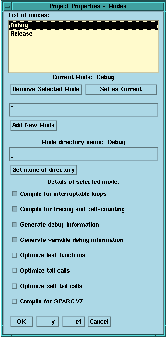
Figure 2.6 Project Properties - Modes.
By default the name of the directory in which the object files are placed is the same as the name of the mode in which they are compiled. For example, if the base location for object files is the examples/projects directory, and the target source files are compiled in Debug mode, then the object files are placed in examples/projects/Debug/.
Compilation can occur with the following different settings enabled or disabled:
- Compile for interruptible loops
- Compile for tracing and call-counting
- Generate debug information
- Generate variable debug information
- Optimize leaf functions
- Optimize tail calls
- Optimize self tail calls
- Compile for SPARC V7
A given mode has different selections of these options enabled and disabled. To compile under a given mode, select that mode from the list and click on Set as Current. Note that it is important to click on the button -- merely selecting the desired mode and clicking on OK or Apply does not choose it.
Two modes are provided by default -- the Debug mode and the Release mode. The Debug mode has the first four options checked, whereas the Release mode has all the optimization options checked. More modes can be added, each with their own settings, in the following manner:
- 1. Set the required options by checking the relevant option checkboxes
- 2. Type in a new mode name into the text field above the Add New Mode button
- 3. Click on the Add New Mode button.
Modes can also be set to have a directory name different to the mode name. Select the mode from the list of modes and enter the new directory name into the text field above the Set Name of Directory, and then click on the button.
For our example we will use the Debug mode, which will place our compiled object files into the examples/projects/Debug/ directory.
Note: If you want to place your compiled object files in the projects/ directory instead of the projects/Debug directory, create a new mode and specify nothing as its location.